Do I need to know anything technical to use this?
No. The normal flow is: create a campaign, share the QR code, review the leads, and send follow-up.
AttendeeQ
We're pulling together your campaigns, leads, and follow-up tools now.
Easy Walkthrough
This page explains what each screen does, when to use it, and what to click next. It is written for first-time users and answers the most basic questions.
Fast Start
Basic Questions
No. The normal flow is: create a campaign, share the QR code, review the leads, and send follow-up.
Each campaign has its own public signup link and QR code. Guests open it on their phone and fill out the short form.
Yes. Use Import Leads when you already have a spreadsheet or export from another source.
Yes. Data Management gives you guarded cleanup tools, and each lead can also be edited or deleted from the campaign detail page.
Use the Forgot password link on the login page. The app will email you a secure reset link.
Yes. The owner can add another user from Data Management.
Page By Page
You do not need to memorize this. Most people only use a few screens at first, then add more as they get comfortable.
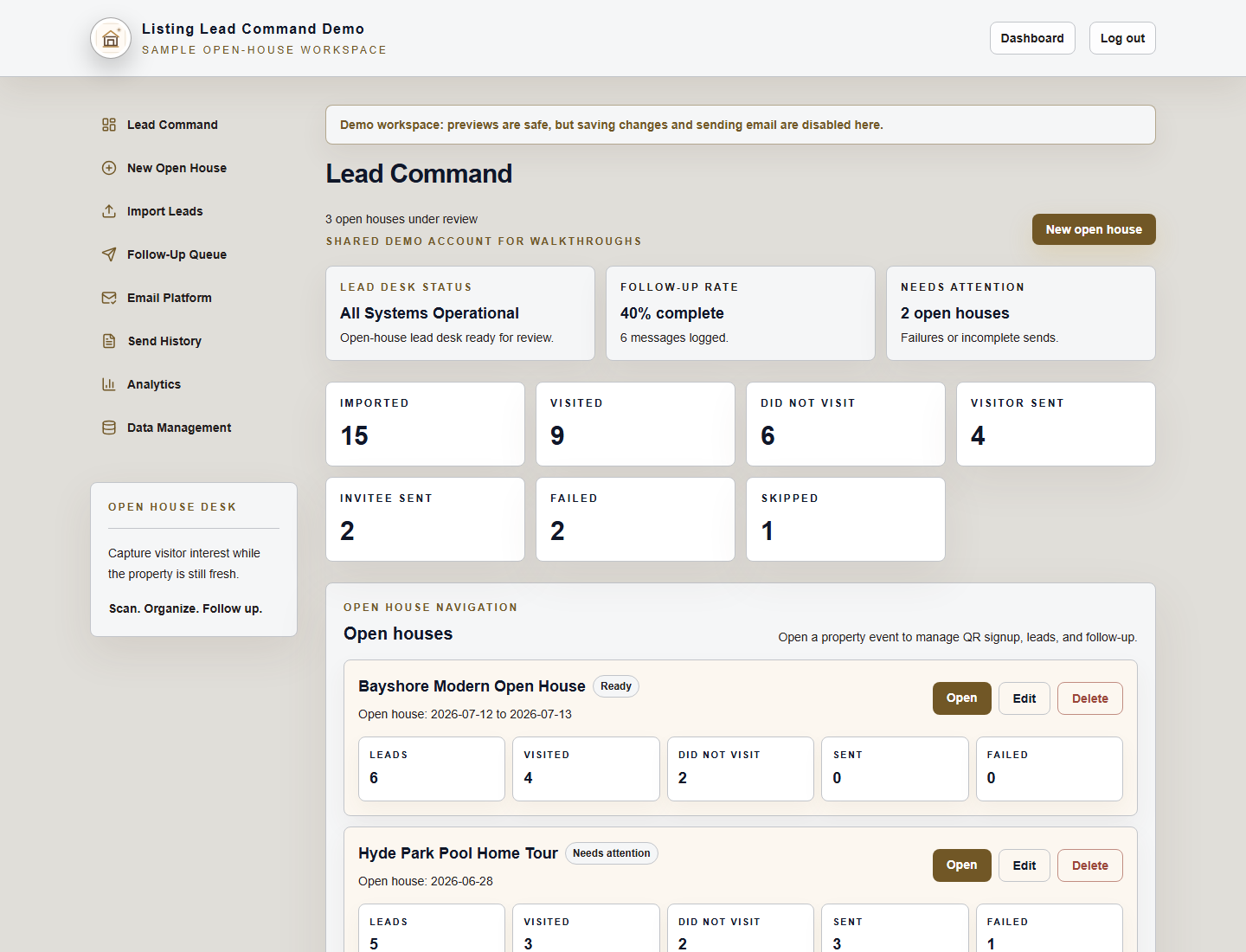
This is the main home base. You can see your campaigns, quick stats, what needs attention, and the fastest next step.
What to do here
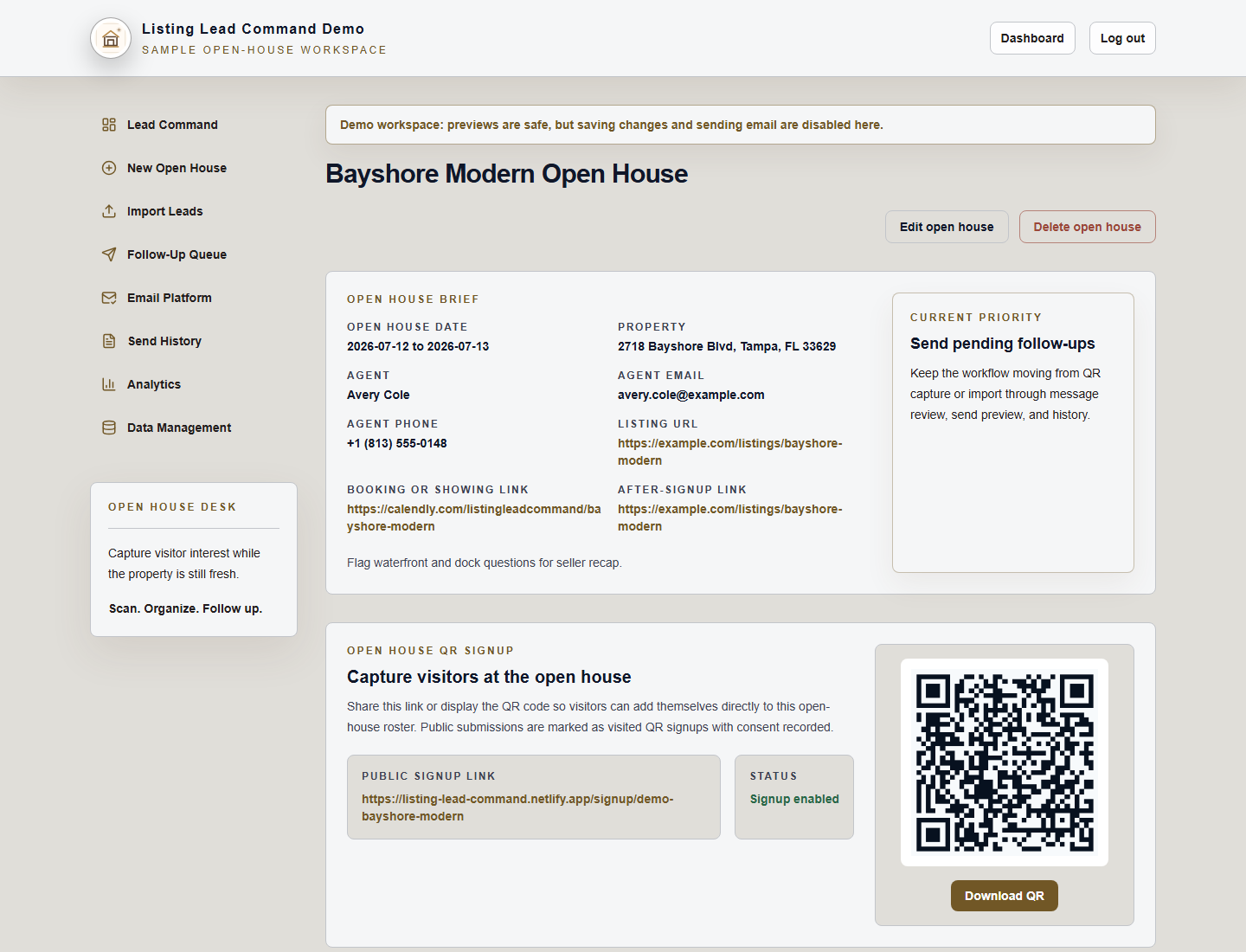
This page is where the event happens. You will find the public signup link, QR code, attendee roster, message actions, and event details in one place.
What to do here
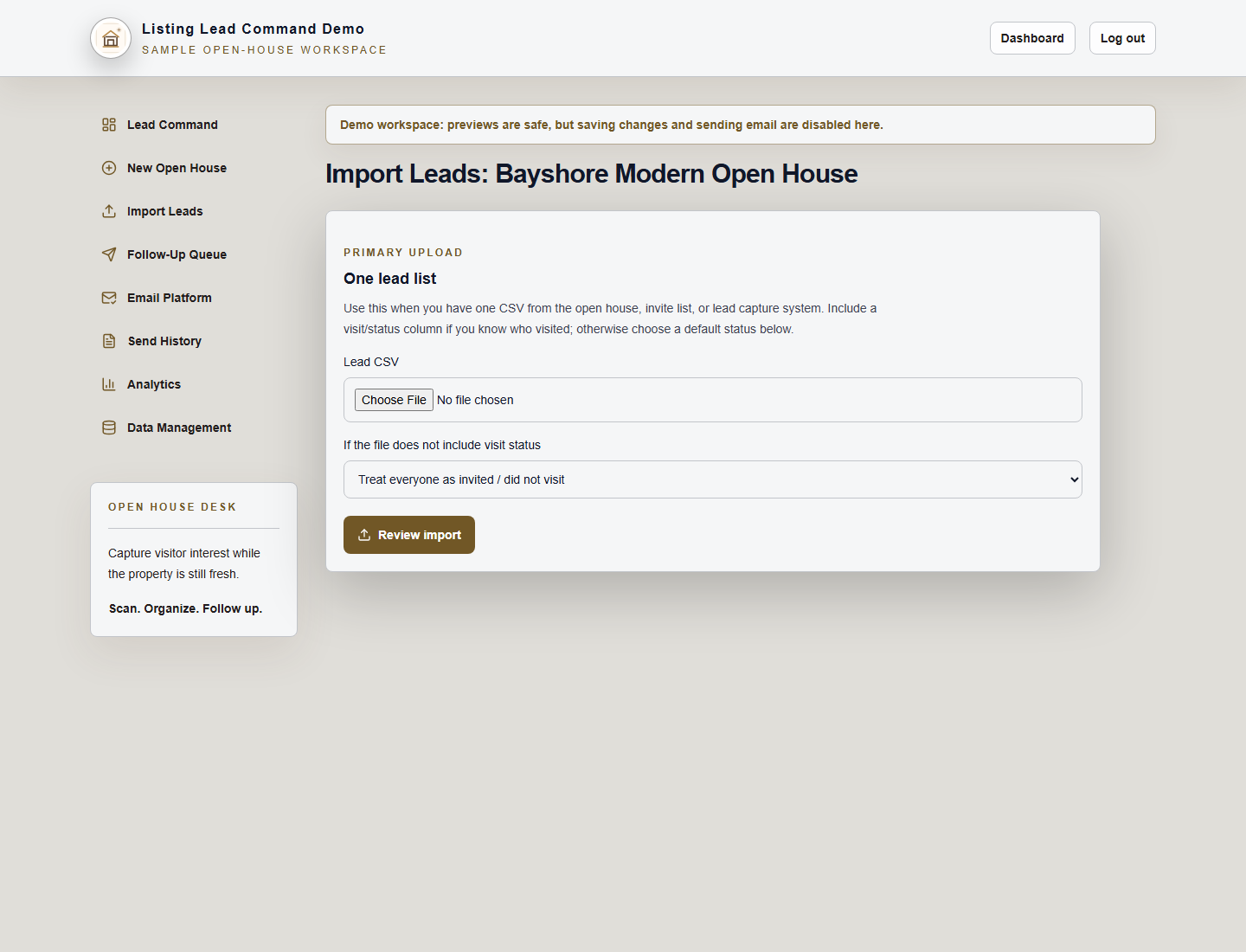
Use this when you already have a list. The app reviews the file first so you can catch problems before anything is saved.
What to do here
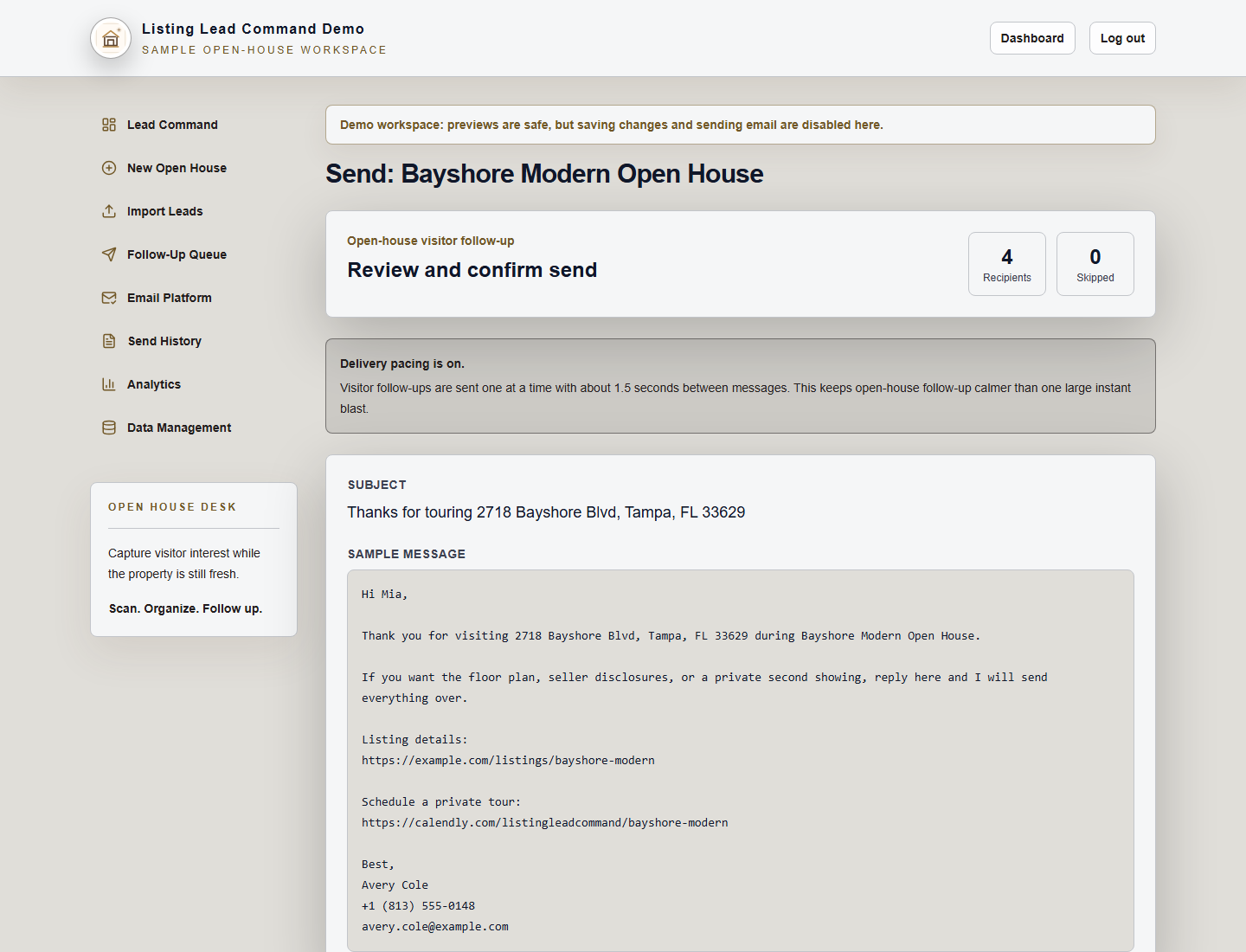
This is where you edit the wording and review exactly what will be sent. The app shows recipient count and a final confirmation step before sending.
What to do here
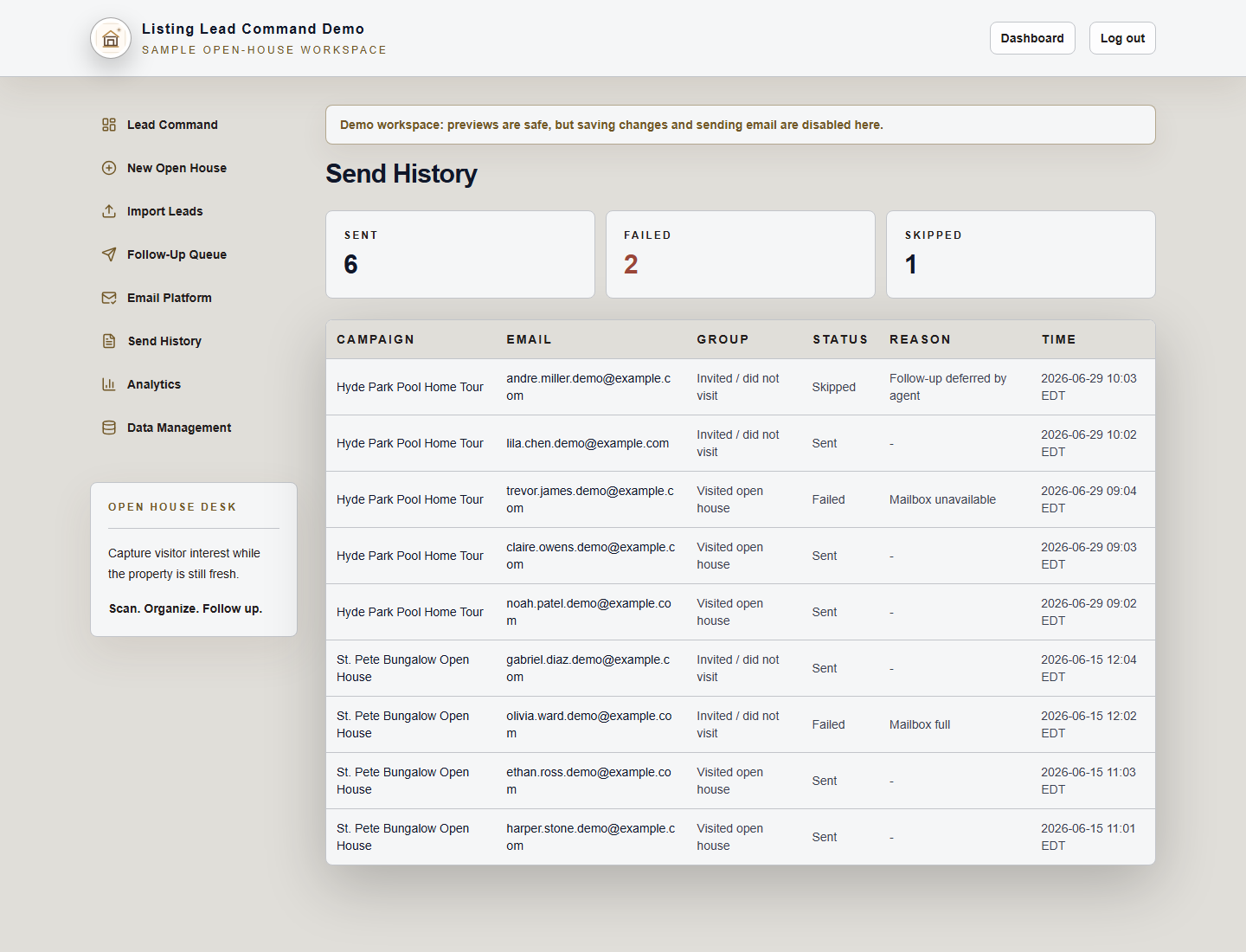
These pages show what happened after you sent outreach. They help you answer simple questions like who was contacted, what failed, and when messages went out.
What to do here
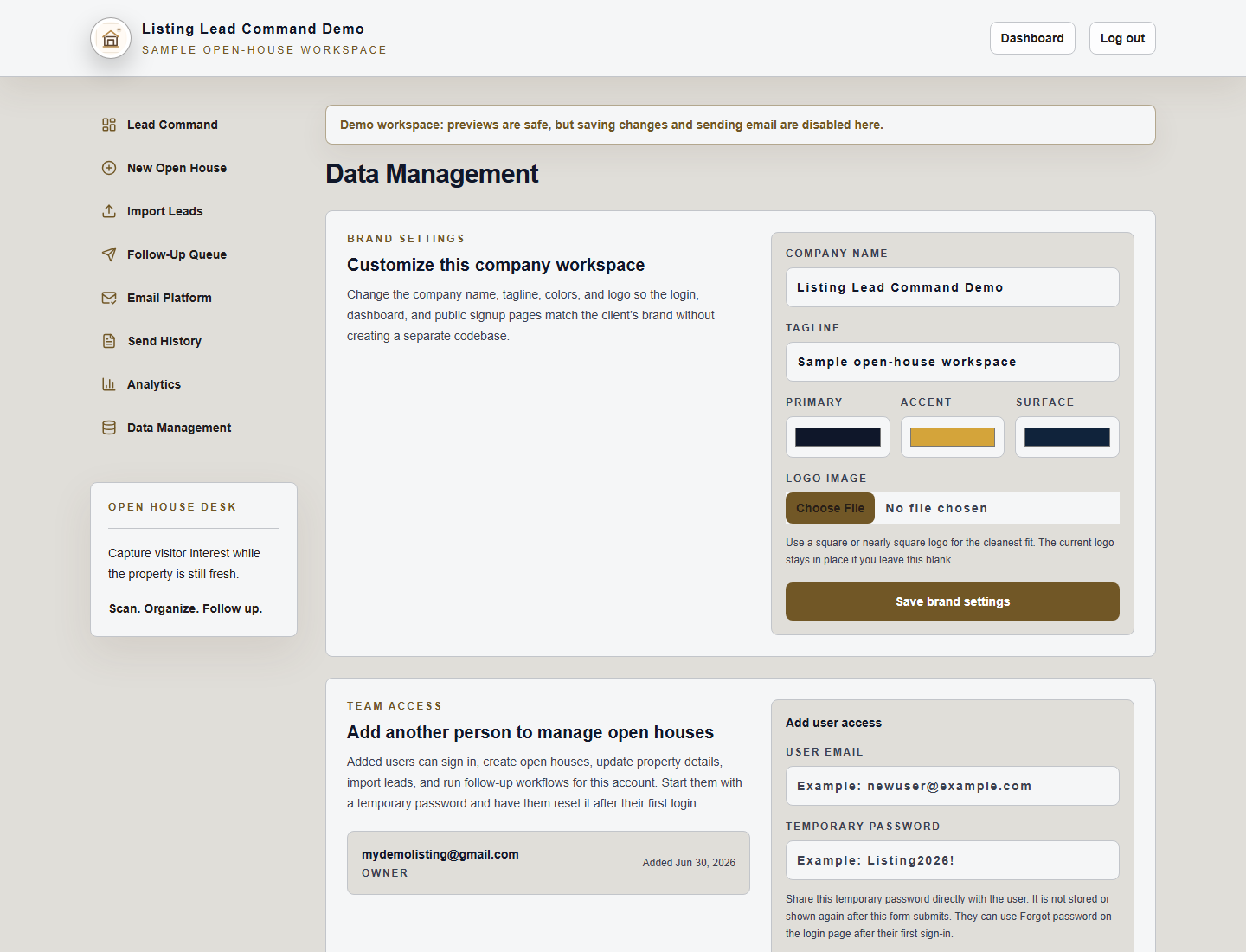
This page is for account-level changes. You can update branding, add another user, and clean up demo or test data with guardrails.
What to do here
Use this page to choose Resend or Gmail, follow the built-in setup steps, and run one safe test before you send anything important.
Use this page when you want a quick list of campaigns that still need outreach or have failures to review.
Use the message editor when you want to change the wording before it goes out to leads.